Local SEO in Dubai: a step-by-step guide to getting found on Google Maps

By Anubhav, Business Head at AWebCo
PUBLISHED 25 OCTOBER 2026
ARTICLE SNAPSHOT
- Who it's for
- Owners and marketing managers of Dubai businesses that serve local customers, such as clinics, salons, restaurants, shops, home services and studios.
- What you'll do
- Set up or fix your Google Business Profile so it can appear on Google Maps and in local search.
- Time needed
- An afternoon to set up, then regular posts and review replies every week.
- Checked against
- Google's Business Profile guidelines and help pages, October 2026.
QUICK ANSWER
Local SEO in Dubai starts with your free Google Business Profile. Claim and verify it, use an address customers can visit (or hide it and set as a service area business), use the name on your sign in one language, pick the most specific category, and ask every customer for a review. Google ranks Maps results on relevance, distance and prominence.
HIGHLIGHTS
- Google ranks the map on three things: relevance, distance and prominence. You can't change your distance from a customer, but you can improve the other two.
- Your address has to be a place you work from. Virtual offices and PO boxes aren't accepted, even as a hidden address. If you visit customers, you can hide the address of your real base and list the areas you cover.
- Use the name on your sign, in one language. Google doesn't allow extra keywords in the name, or the same name repeated in two languages.
- Reviews help you rank. Ask every customer the same way, and keep rewards out of it.
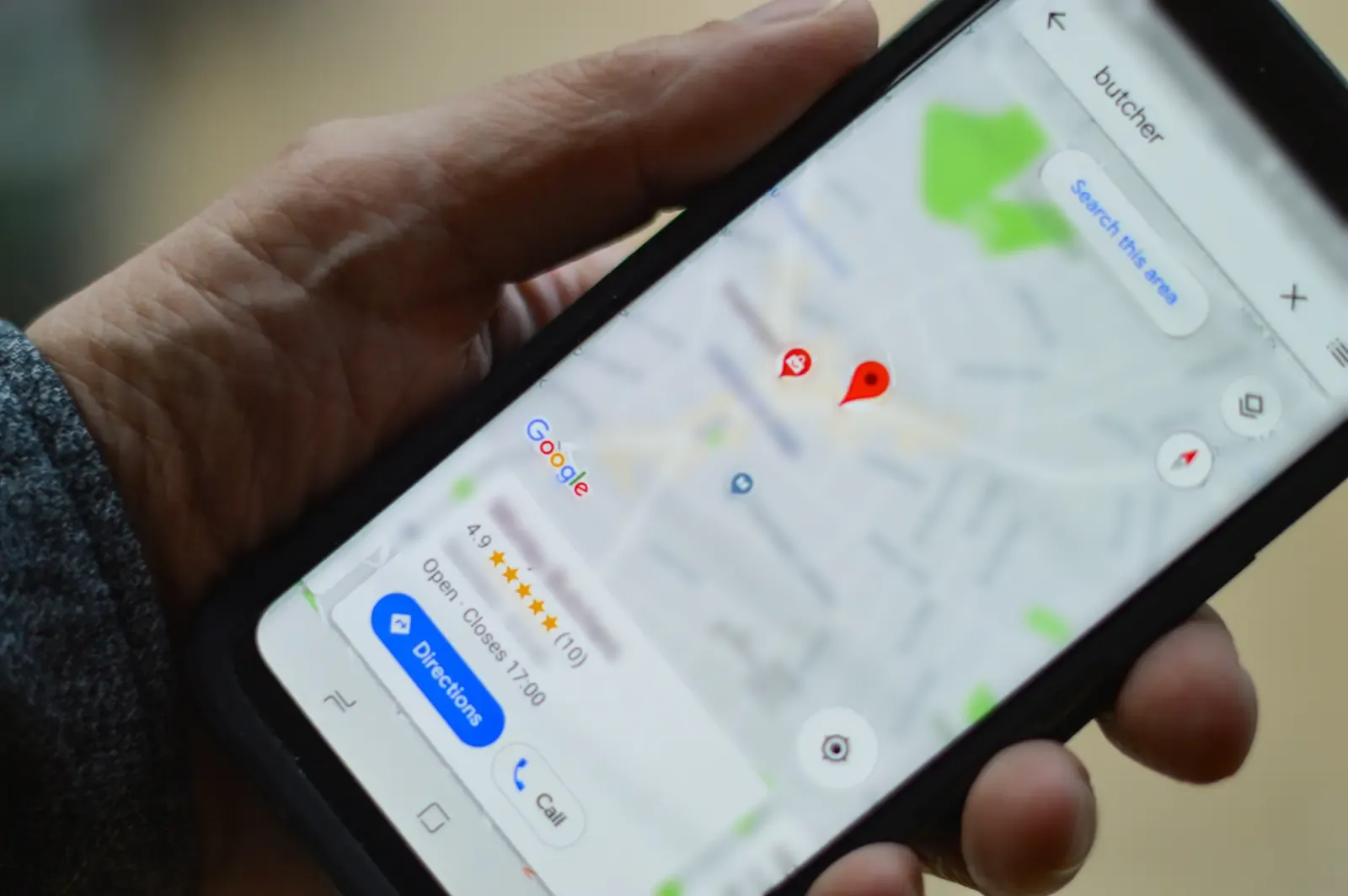
For many Dubai businesses, Google Maps is where a new customer finds them first, often before they ever see the website. Someone searches “dentist near me” or “car service Al Quoz”, looks at the businesses on the map, and calls one of them.
Showing up in that list is mostly within your control, and almost all of it is free. This guide takes you through it in the order our local SEO team works through it with clients at AWebCo, with Google's own rules quoted so you know exactly where you stand.
How does Google Maps ranking work?
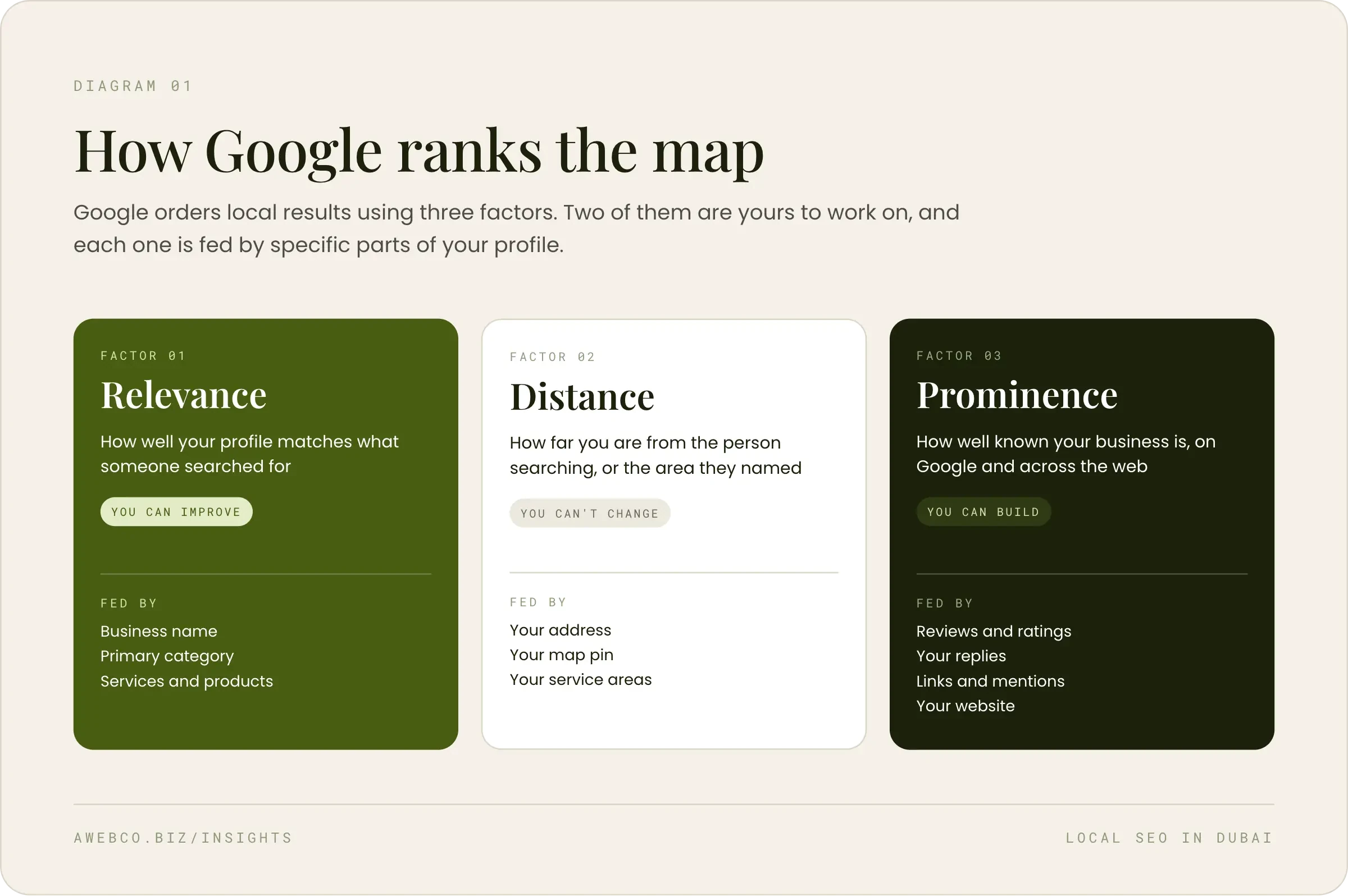
Google uses three factors to rank local results, and it explains them in its help pages.
Relevance is how well your profile matches what someone is looking for. A profile that says “physiotherapy clinic” and lists its treatments is a closer match for “physiotherapy Jumeirah” than one that just says “medical centre”.
Distance is how far you are from the person searching, or from the area they mention. You can't change this one. It's also why the map shows different businesses as you move around the city.
Prominence is how well known your business is, based on reviews, links and mentions across the web. Google notes that “more reviews and positive ratings can help your business's local ranking”.
Google also says “there's no way to request or pay for a better local ranking”. You may see listings marked “Sponsored” on Maps. Those are Google Ads, a separate paid product, and they don't change where your profile ranks.
Step 1: Find, claim and verify your Google Business Profile
Start by checking whether a profile already exists. Sign in to the Google account you think manages it and search “my business” on Google. If nothing comes up, search your business name and area.
- You see your profile with editing options. You already manage it, so move on to step 2.
- You see “Own this business?” or “Claim this business”. The profile isn't in your account. If nobody has verified it, that link lets you claim it. If someone else already manages it, Google asks you to request access, and the current owner has 3 days to respond.
- Nothing comes up. Create a new profile at business.google.com.
It's worth checking which Google account the profile sits in. Profiles are often set up by a web designer, an ads agency or a former employee. If that's how yours started, ask them to add your company's Google account as an owner, under the profile's settings for people and access. It's far quicker while you're still in touch.
Next, Google asks you to verify. Google decides which methods you're offered, and they can include phone or text, email, a recorded video, a live video call or a postcard. If video is one of your options, Google recommends it. It needs to be a single unedited recording of at least 30 seconds, made on your phone through your profile. Show the street or building, your sign with the same name as your profile, and something only staff can get to, such as the till, your equipment or the stockroom. Google says reviewing a video can take up to 5 business days.
Step 2: Choose the right address for a Dubai business
This step needs extra care in the UAE because of the way many businesses here are licensed.
Google asks for an address where your business actually operates. Its guidelines say “P.O. boxes or mailboxes located at remote locations aren't acceptable”. If your business “rents a physical mailing address but doesn't operate out of that location, also known as a virtual office”, that location isn't eligible for a profile. A co-working space can work if it has your signage, your staff are there during your posted hours, and customers visit you there.
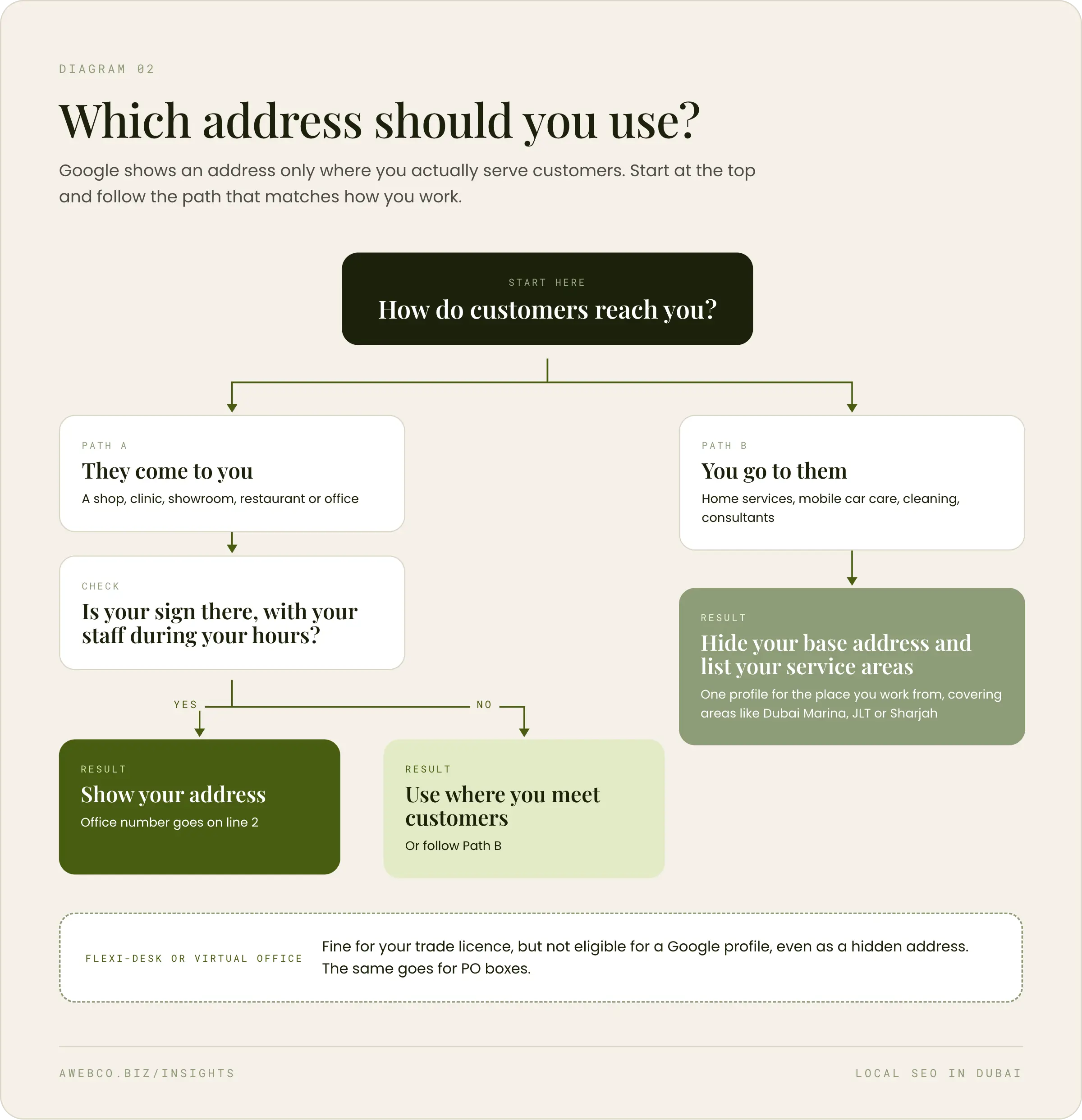
Many UAE companies hold their licence against a flexi-desk or a virtual office in a free zone. That's fine for the licence, but Google won't accept it for a profile. If that's your setup, you still have a way onto Maps, depending on whether customers come to you or you go to them.
| Address type | Can it show on Google Maps? | What to do |
|---|---|---|
| Shop, clinic, showroom or restaurant with your sign | Yes | Use the full address |
| Office where clients visit you | Yes | Use the building address, with your office number on line 2 |
| Co-working space | Only with your sign, your staff there during your hours, and customers visiting | If that isn't the case, use the place your team actually works from |
| Flexi-desk or virtual office | No, not even as a hidden address | Use the address where you meet customers, or the place your team works from as a service-area business |
| PO box or mailbox | No, not even as a hidden address | Enter the real place you work from, then hide it and add your service areas |
| Home, when you travel to customers | Your profile can, with the address hidden | Hide the address and list the areas you cover |
If you go to your customers, you're what Google calls a service-area business. You keep one profile for your real base, hide the address, and list the areas you cover, such as Dubai Marina, JLT or Sharjah. Google asks that the whole area stays within about two hours' drive of where you're based. Home services, mobile car care, cleaning companies and consultants who meet clients at their offices usually fit here.
Step 3: Use the business name your customers know
Your profile name should match the name on your shopfront, website and invoices. Google's guidelines don't allow extra information in the name, such as taglines, lists of services, area names, phone numbers or website addresses.
Many Dubai signs show the name in two languages. Google's guidelines don't allow “repeating the same business name in multiple scripts or languages, even if it appears this way on physical storefront signage”, so pick one language for the name field.
| Use this | Avoid this |
|---|---|
| Al Noor Dental | Al Noor Dental, Best Dentist in Jumeirah |
| Bloom Florist | Bloom Florist Dubai Same Day Delivery |
| Hassan Auto Care | Hassan Auto Care near Mall of the Emirates |
| Ola Studio | Ola Studio 050 123 4567 |
Example names are for illustration.
A trade licence often carries a longer legal name, for example “Al Noor Medical Services L.L.C.”. Google asks for the name customers know, so use the one on your sign. Legal terms like L.L.C. only belong in the name if your sign and invoices always use them.
If your profile name has extra words in it today, edit it back to the name on your sign. Google may review a name change before it goes live, so make that change on its own and leave other edits for a few days. Your services get their own section in step 6.
Step 4: Choose the most specific category
Your primary category tells Google what kind of business you are, and Google says the categories you choose affect your local ranking. It suggests the most specific category that fits, with as few extra categories as you need.
A helpful test is that the category completes the sentence “This business is a...”. A clinic might be a “Dental clinic” or an “Orthodontist”, and a café a “Coffee shop”. Things you sell, such as teeth whitening or brunch, belong in services and products.
If two categories both fit, make the one that covers most of your work the primary, and add the other as a secondary category.
Step 5: Put your map pin on your front door
Dubai buildings can be tricky for maps. Many don't have street numbers, several towers can share a name, and the pin sometimes lands on the wrong side of the building. Once your address is in, go to Edit profile, open your business location and drag the pin to your entrance. That's where Google Maps sends people who ask for directions.
Step 6: Optimise every section of your Google Business Profile
Some parts of your profile help you get found, and some help people choose you once they've found you. It's worth filling in both.
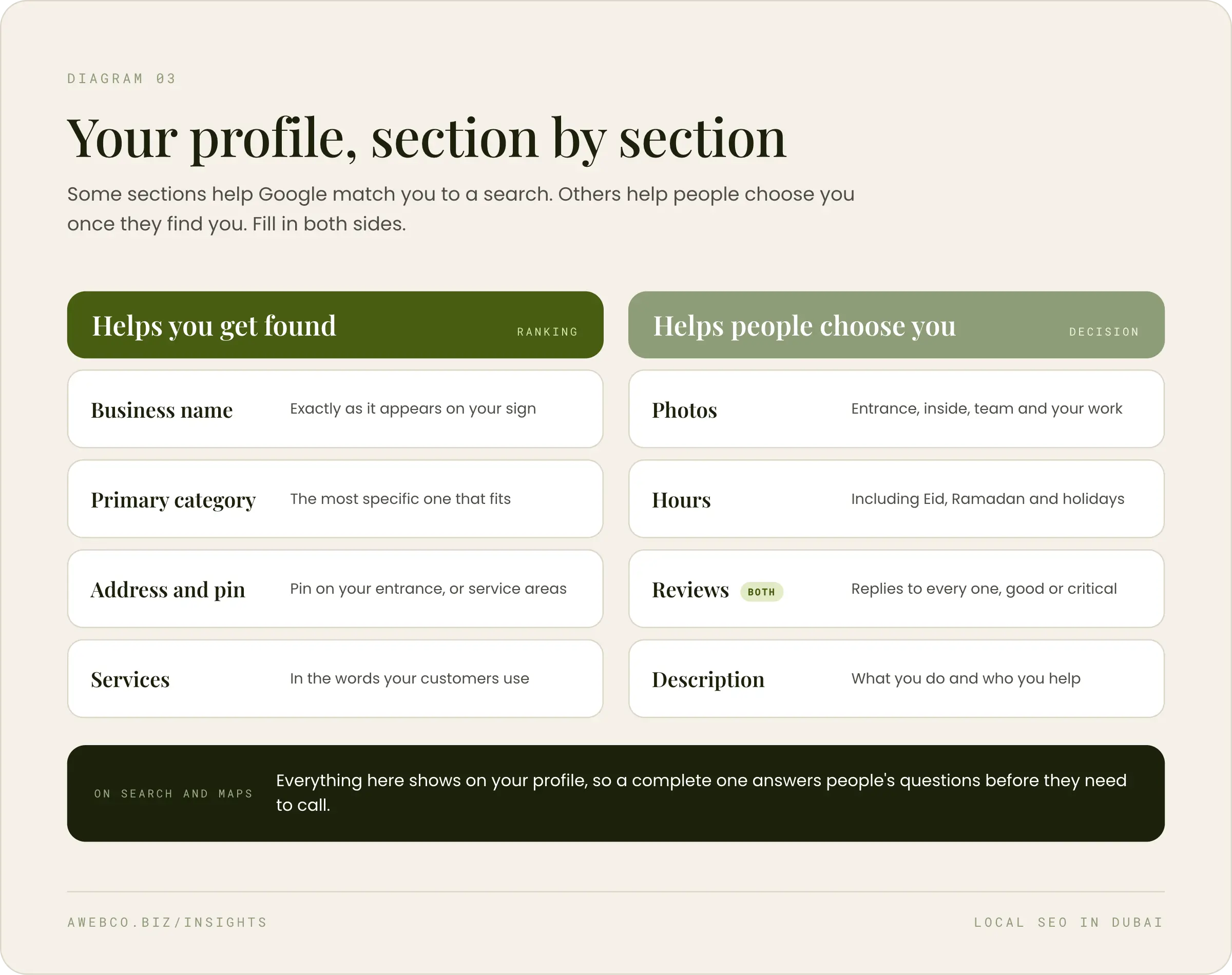
- Services and products. List what you offer in the words your customers use. This is the place for things like teeth whitening or same-day delivery.
- Hours. Keep them accurate, and add special hours ahead of Eid, Ramadan and public holidays.
- Photos. Add your own photos regularly, including the entrance from the street, the inside, your team and your work. A clear entrance photo helps a lot in Dubai, where buildings can look alike.
- Description. Say what you do and which areas you serve, in up to 750 characters. Keep offers for updates, and leave out links, since Google doesn't allow them here.
- Chat. If your profile shows a chat option under contact details, you can add a WhatsApp link so people can message you from Search and Maps. Google offers this in some regions.
- Updates. Post regularly, ideally every week: offers, news, events, new services or recent work. Fresh posts show people the business is active and give them a reason to get in touch.
Google is also changing how questions and answers work on profiles. It switched off the Q&A connection for third-party tools in November 2025, and the old Questions and Answers section may no longer show on your profile. Either way, people decide from what is there, so keep your services, hours and description complete.
Step 7: Get more Google reviews the right way
Reviews feed prominence, and they're often what helps someone choose between you and the business next door.
To make asking easy, open your profile on Google, select Ask for reviews and copy your review link. Save it as a quick reply in WhatsApp Business so anyone on your team can send it after a visit. Then reply to the reviews that come in. When one is critical, reply calmly and say what you've changed. New customers read those replies when they're deciding who to call.
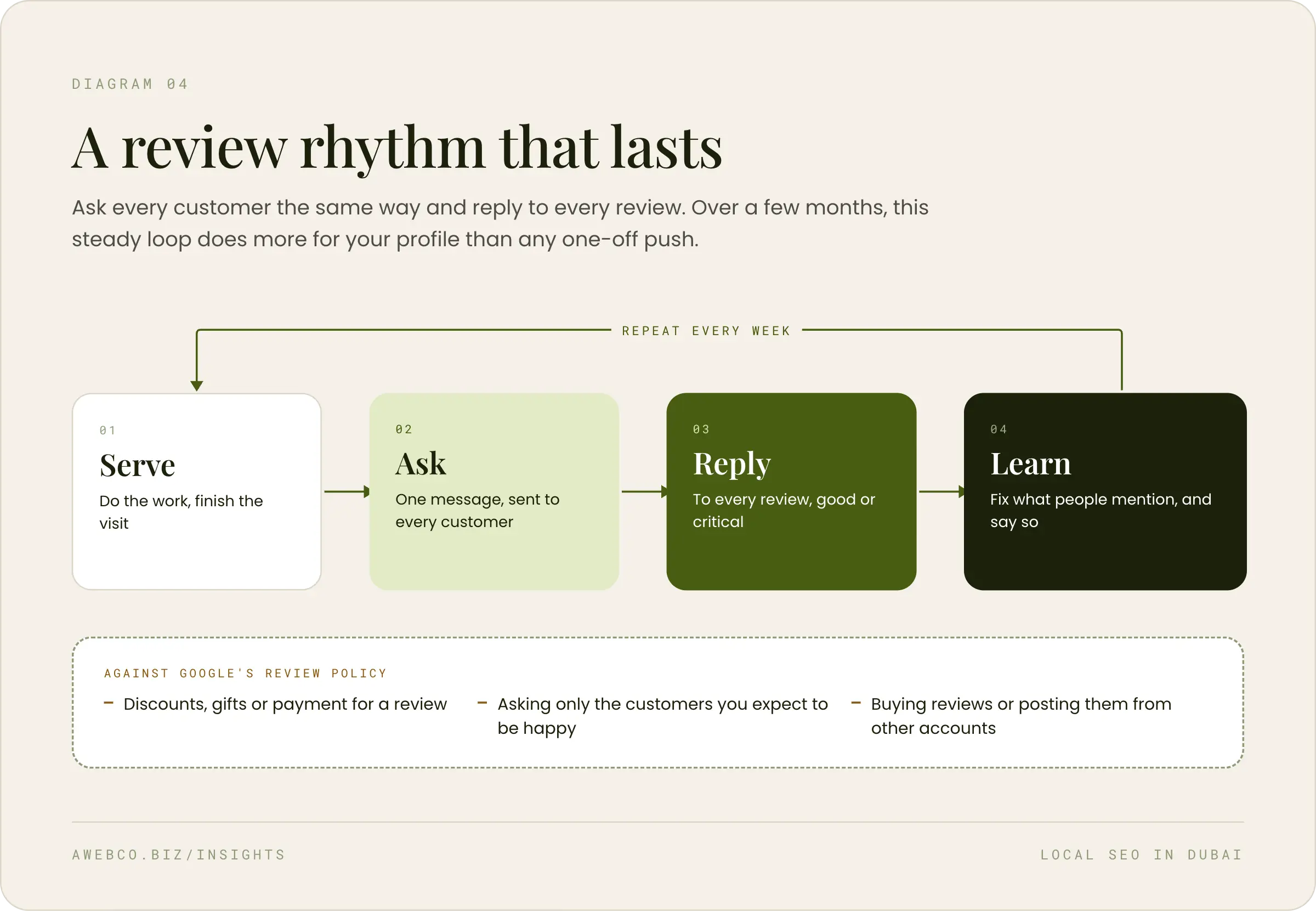
Google's review policy sets out what's fair, and reviews gathered against it can be removed.
| Encouraged | Against Google's review policy |
|---|---|
| Asking every customer for a review | Offering a discount, gift or payment for a review |
| Sending your review link after a visit, by WhatsApp or email | Asking only the customers you expect to be happy |
| Letting customers review in their own time | Pressing customers to review while they're still with you |
| Leaving the words to the customer | Asking for set wording, or for a staff member to be named |
| Replying to every review, positive or critical | Reviews from your staff, former staff or family |
Step 8: Make your website match your profile
Google builds prominence from the whole web, including your website and the other places your business is listed. AI assistants like ChatGPT and Gemini also read those pages when someone asks them to recommend a business. A few simple steps keep everything pointing the same way.
- Use the same details everywhere. Copy the name, address and phone number from your profile exactly onto your website, social pages and any directories you're listed in.
- Make your contact page complete. Include your address, a map, your hours, and your phone and WhatsApp.
- Give each branch its own page. If you have more than one location, each one gets its own page with its own address and hours.
- Ask your web developer to add LocalBusiness structured data. This is a short piece of code that tells search engines your name, address, hours and phone in a format they can read reliably.
- Link your profile to the right page. For a single location that's usually your homepage. For branches, link each profile to that branch's page.
How to tell if your local SEO is working
Your profile has its own performance report. To open it, search your business name on Google while signed in and select Performance. It's more reliable than searching for yourself, because Google takes into account where you are and what you've looked at before, so you won't see what a customer sees.
| In the performance report | What it tells you | What to do with it |
|---|---|---|
| Calls | How many times people tapped the call button | Make sure the number reaches someone who answers |
| Directions | How many people asked for directions to you | Check your pin and entrance photo |
| Website clicks | How many times people clicked through to your website | Make sure the page they land on answers their question |
| Searches | The search terms people used to find you | Add those words to your services and website |
| Views | How many people viewed your profile on Search and Maps | Compare month on month |
Once a month is enough. The searches list is the most useful part, because it shows you the exact words your customers use.
Your Google Maps checklist
Claim and verify your profile in a Google account your business owns.
Use an address customers can visit, or your real base with the address hidden and service areas set.
Use the name on your sign, in one language, with nothing added.
Choose the most specific primary category.
Drag your map pin to the entrance.
Fill in services, products, hours and a description.
Post an update every week.
Add your own photos, including the entrance from the street.
Set up one way to ask every customer for a review.
Reply to every review.
Use the same name, address and phone number on your website and listings.
Check your performance report once a month.
Frequently asked questions
How do I find my Google Business Profile?
Sign in to the Google account you think manages it and search “my business” on Google. If nothing comes up, search your business name and area. If you see “Own this business?”, the profile exists but isn't in your account, and that link starts the claim.
How long does it take to appear on Google Maps?
Google says reviewing a verification video can take up to 5 business days. Once you're verified, your profile can appear on Maps. How high it appears depends on the three ranking factors, and especially on how many similar businesses are close to the person searching.
Why isn't my business showing on Google Maps?
The most common reasons are an unverified profile, an address Google doesn't accept, or a profile that sits in someone else's account. Work through steps 1 and 2 first.
Can I appear in areas where I don't have an office?
As a service-area business you can list the areas you cover, within about two hours' drive of your base. On the map itself, Google still favours businesses close to the person searching.
How do I fix a suspended Google Business Profile?
Don't create a new profile for the same business. First check your profile against steps 2 and 3, and fix anything that doesn't fit, such as extra words in the name or an address Google doesn't accept. Then appeal through Google's Business Profile appeals tool. You can only submit an appeal once, so attach your evidence the first time. Your trade licence, VAT certificate or a DEWA bill work well, as long as the name and address match your profile.
Do I need a separate profile for each branch?
Yes, one for each location customers can visit, each with its own address, phone number and hours.
What if my sign shows the name in two languages?
Choose one language for the name field. Google's guidelines don't allow the same name repeated in two languages, even when your sign shows both.
How do I get my business recommended by ChatGPT or Google's AI?
There's no sign-up for it. AI assistants recommend local businesses based on what's published about them, such as your Business Profile, your reviews, your website and other listings. Working through this guide helps, especially keeping your details the same everywhere (step 8). Our article on SEO and GEO goes into this in more depth.
Sources
- Google, “Tips to improve your local ranking on Google”, support.google.com/business/answer/7091
- Google, “Guidelines for representing your business on Google”, support.google.com/business/answer/3038177
- Google, “Prohibited & restricted content”, support.google.com/contributionpolicy/answer/7400114
- Google, “Find your business on Google”, support.google.com/business/answer/145585
- Google, Business Profile help on video verification, appeals and performance

Want a second pair of eyes on your profile?
Our local SEO team can look over your Google Business Profile and tell you what to fix first.
Talk to our teamAnubhav
Business Head at AWebCo
Anubhav runs the business day to day at AWebCo, from client strategy through to growth, and works across every sector we serve. He writes here about search, AI visibility and what both mean for the businesses we work with.
Anubhav on LinkedIn